Connection Explorer: Difference between revisions
(Created page with "{{MainLightTemplate | welcome = link=|<span title="Stardock Connection Explorer Wiki"></span> | about_title = About Connection Explorer | about_content = With powerful tools to create intelligent activity alerts, block unwanted connections, review historical data, and add notes to DNS entries, Connection Explorer keeps you fully informed about how and when your device is communicating with the world. <h2 style="font-family: sans-s...") |
No edit summary |
||
| Line 7: | Line 7: | ||
<h2 style="font-family: sans-serif; font-size: 1.5em; margin-top:0.875em"> Key Features </h2> | <h2 style="font-family: sans-serif; font-size: 1.5em; margin-top:0.875em"> Key Features </h2> | ||
*Map - Connections are plotted on a map with activity data for easy identification | *Map - Connections are plotted on a map with activity data for easy identification | ||
*Activity Timeline - View connection history, bandwidth usage, and active apps over time | |||
*Bandwidth Monitoring - Track network usage per application | |||
*Alerts - Easily create intelligent alerts to identify unwanted activity | *Alerts - Easily create intelligent alerts to identify unwanted activity | ||
*Connections - See all of your device's active | *Connections - See all of your device's active connections | ||
*DNS - Explore | *DNS - Explore DNS connections and create notes for activity | ||
*Ping - A simple and easy to use tool to test external connectivity | *Ping - A simple and easy-to-use tool to test external connectivity | ||
<h2 style="font-family: sans-serif; font-size: 1.5em; margin-top:0.875em"> See Every Connection </h2> | <h2 style="font-family: sans-serif; font-size: 1.5em; margin-top:0.875em"> See Every Connection </h2> | ||
| Line 24: | Line 25: | ||
<p style="margin: 0 0 0 22px;">Every map dot is a live connection that you can explore to understand where your apps are sending or receiving information.</p> | <p style="margin: 0 0 0 22px;">Every map dot is a live connection that you can explore to understand where your apps are sending or receiving information.</p> | ||
[[File:ConnectionExplorer- | [[File:ConnectionExplorer-feature1b.png|400px]] | ||
| Line 36: | Line 37: | ||
<p style="margin: 0 0 0 22px;">Want to see if someone is targeting your remote desktop connections? Easy to configure port monitoring logic makes the process simple.</p> | <p style="margin: 0 0 0 22px;">Want to see if someone is targeting your remote desktop connections? Easy to configure port monitoring logic makes the process simple.</p> | ||
[[File:ConnectionExplorer- | [[File:ConnectionExplorer-feature2a.png|400px]] | ||
| Line 48: | Line 49: | ||
<p style="margin: 0 0 0 22px;">Blocking applications from connecting to the Internet with a single click.</p> | <p style="margin: 0 0 0 22px;">Blocking applications from connecting to the Internet with a single click.</p> | ||
[[File:ConnectionExplorer- | [[File:ConnectionExplorer-feature3a.png|400px]] | ||
| sections_title = Featured | | sections_title = Featured Trailer | ||
| sections_content = | | sections_content = | ||
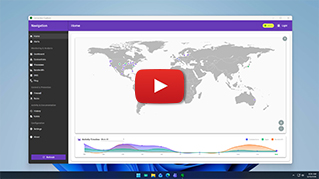
<span style="margin-left:-0.4em;">[[File: | <span style="margin-left:-0.4em;">[[File:ConnectionExplorer-trailer-thumb.jpg|319px|link=https://www.youtube.com/watch?v=DcLvWAn-QFI]]</span> | ||
| articles_title = Important Pages | | articles_title = Important Pages | ||
| articles_content = | | articles_content = | ||
<h2 style="font-family: sans-serif; font-size: 1.125em; margin-top:0.875em"> Media </h2> | <h2 style="font-family: sans-serif; font-size: 1.125em; margin-top:0.875em"> Media </h2> | ||
*[[Connection Explorer Screenshots|Screenshots]] | *[[Connection Explorer Screenshots|Screenshots]] | ||
*[[Connection Explorer Videos|Videos]] | |||
<h2 style="font-family: sans-serif; font-size: 1.125em; margin-top:0.875em"> Connection Explorer Resources</h2> | <h2 style="font-family: sans-serif; font-size: 1.125em; margin-top:0.875em"> Connection Explorer Resources</h2> | ||
Latest revision as of 14:16, 14 April 2026
 |
Featured Trailer
Important PagesMediaConnection Explorer ResourcesOfficial Pages |
About Connection ExplorerWith powerful tools to create intelligent activity alerts, block unwanted connections, review historical data, and add notes to DNS entries, Connection Explorer keeps you fully informed about how and when your device is communicating with the world. Key Features
See Every ConnectionYour apps are talking, see who's listening.Get a clear view of every connection your PC makes and where your apps send your data.
Complex data is made easy to understand with home and timeline views that make looking at current and historical connections a single click.
Every map dot is a live connection that you can explore to understand where your apps are sending or receiving information.
Create smart alerts, intelligence defined by you.Create smart rules to identify and alert you to suspicious network activity.
Easy to build rules allow you to create alerts when a connection to a country is discovered or set the parameter to alert you every time a connection occurs outside your home country.
Want to see if someone is targeting your remote desktop connections? Easy to configure port monitoring logic makes the process simple.
Full connection history, ready to be explored.Your PC connects to endpoints across the globe, visualize every interaction in an interface designed for exploration.
Applications, processes, DNS and more, see all of the connections your device is making and where the data is being sent.
Blocking applications from connecting to the Internet with a single click.
|