Start11 Screenshots: Difference between revisions
Jump to navigation
Jump to search
No edit summary |
No edit summary |
||
| Line 13: | Line 13: | ||
File:start11 v13 02.png| Use a Windows 10 style menu on Windows 11. | File:start11 v13 02.png| Use a Windows 10 style menu on Windows 11. | ||
File:start11v2 beta gallery4.png| Start Menu App Style with Tabs. | File:start11v2 beta gallery4.png| Start Menu App Style with Tabs. | ||
File:Start11 v25 rel ss01.png| Vertical Taskbar for Windows 11. | |||
</gallery> | </gallery> | ||
Latest revision as of 16:20, 15 January 2025
-

Rounded and Floating Taskbar with Pro Style Start Menu.
-
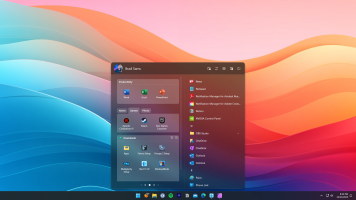
Start Menu App Style with Tabs.
-
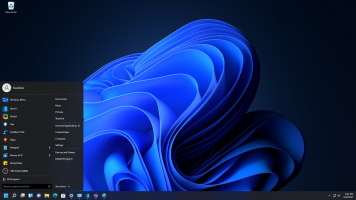
Return to the familiar Windows 7 style Start menu.
-
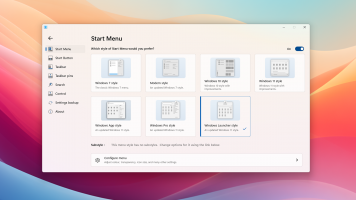
Choose from 4 menu styles.
-
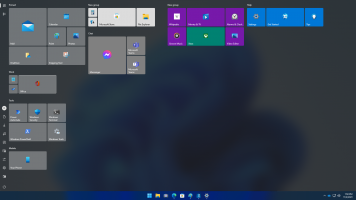
Use a full-screen Start menu in Windows 11.
-

Bring the Windows 11 Start menu to Windows 10.
-
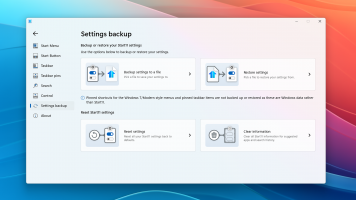
Backup or restore your Start11 settings.
-

Easily add a folder or a fence to your Start menu.
-
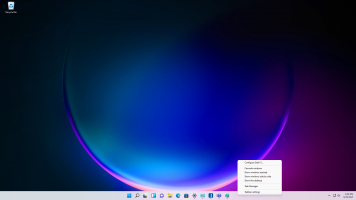
Right click on your taskbar for quick setting changes.
-
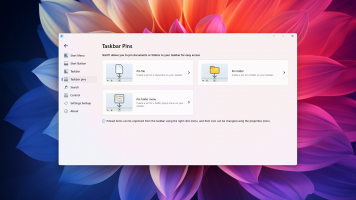
Pin documents or folders to your taskbar for easy access.
-
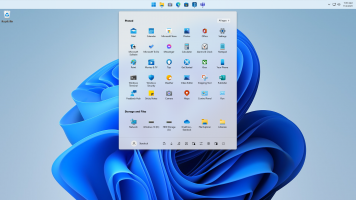
Choose to have your taskbar at the top or bottom.
-
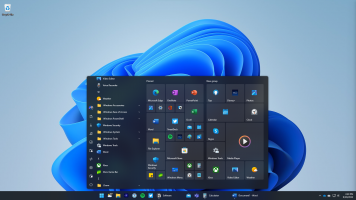
Use a Windows 10 style menu on Windows 11.
-
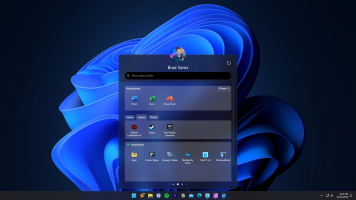
Start Menu App Style with Tabs.
-

Vertical Taskbar for Windows 11.


